> ## Documentation Index
> Fetch the complete documentation index at: https://docs.betterstacks.com/llms.txt
> Use this file to discover all available pages before exploring further.
# Collections
> Collections are containers for saves within a workspace. They are like folders on your computer where you can organize your saves.
## Overview
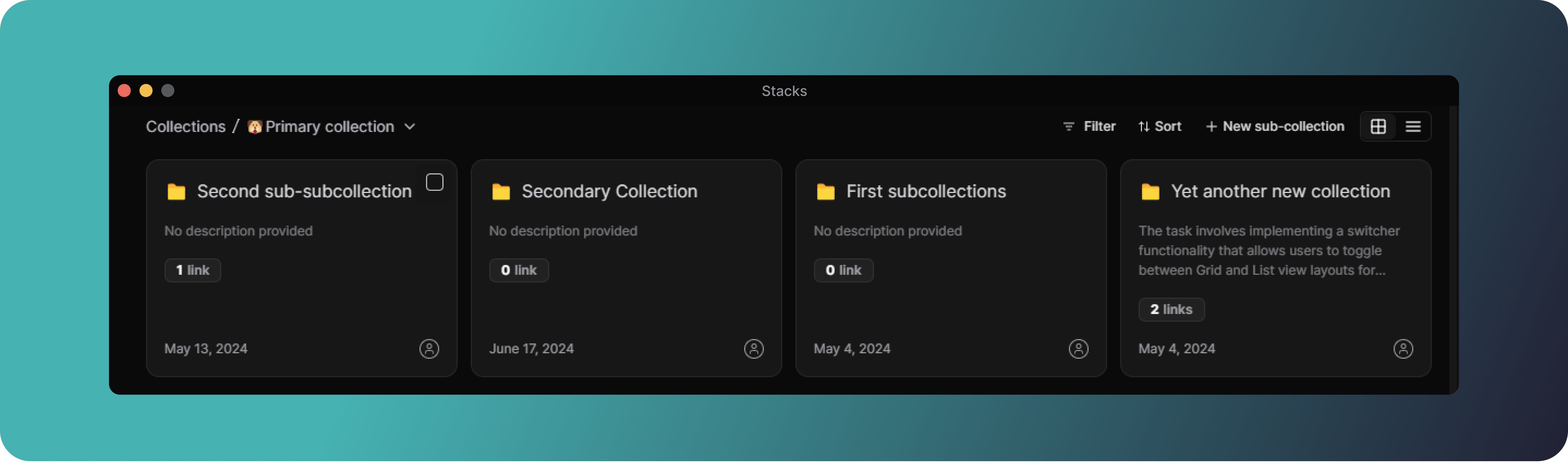
Collections are essentially just folders. They are containers for saves within a workspace. You can create collections
to group saves by topic, project, or any other criteria you like. There is no one way to organize your collections, so
you can create them in a way that makes sense to you.
Collections can be nested within each other to create a hierarchy of saves. A save can belong to multiple collections
at the same time. This means that you can organize your saves in multiple ways without duplicating them. Similarly, a
collection can be part of multiple workspaces. This allows you to share collections with other users or teams.
#### Collection icon
A collection has a title and a description. The title is mandatory while the description is optional. You can also add
an emoji to your collection to make it more visually appealing. If you choose not to, it will have a default folder icon
instead.
#### Public collections
Collections are private by default, which means that only you or whoever has access to the workspace the collection
belongs to can see them. However, you can make a collection public so that anyone with the link can view it. This is
useful when you want to share a collection with someone who is not part of your workspace.
## Key takeaways
* Collections are containers for saves within a workspace.
* You can create collections to group saves by topic, project, or any other criteria you like.
* Collections can be nested within each other to create a hierarchy of saves.
* A save can belong to multiple collections at the same time.
* A collection can be part of multiple workspaces.
* You can make a collection public so that anyone with the link can view it.
## Creating a collection
There are multiple ways to create a collection in Stacks. The easiest way is to look for the `+` button in the sidebar
next to the `Collections` header. Click on it, and you will be presented with a dialog where you can enter the title and
description of your collection. You can also add an emoji to your collection to make it more visually appealing.
Optionally, you can mark the collection as public. That way anyone with the link can view it. This option is turned off
by default.
You can also create a collection from the `Collections` page. Click on the `Collections` link in the sidebar to open the
collections page. Here you will see a list of all collections in the workspace. Click on the `New collection` button
next to the `Sort` and `Filter` buttons. You will be presented with the same dialog as before where you can enter the
title and description of your collection.
Or to quickly create a collection from anywhere in the app, press `Shift` `C`.
## Sub-collections
You can create sub-collections within a collection to further organize your saves. To create a sub-collection, open the
parent collection and click on the `New sub-collection` button next to the `Sort` and `Filter` buttons. You will be
presented with a dialog where you can enter the title and description of your sub-collection.
That `New sub-collection` button is also available on the right sidebar when you are viewing a collection or by
right-clicking on a collection.
Note that collection can always be moved to another collection or workspace. To move a collection, right-click on the
collection or click on the three dots menu next to a collection name and select `Move collection`.
## Share collection
You can share a collection with other users or teams by making it public. To do this, open the collection and click on
the three dots menu next to the collection name in the right sidebar or just right-click on the collection. Select
`Share` from the menu. You will be presented with a dialog where you can turn on the `Public` switch. This will generate
a link that you can share with anyone. Anyone with the link will be able to view the collection.
You can change the link at any time by turning off the `Public` switch. This will invalidate the old link and generate a
new one. You can also turn off the `Public` switch to make the collection private again.
## Editing a collection
To edit a collection, open the collection and click on the three dots menu next to the collection name in the right
sidebar or just right-click on the collection. Select `Edit` from the menu. You will be presented with a dialog where
you can edit the title, description, and emoji of the collection. You can also mark the collection as public or private.
## Favorite collections
You can pin a collection to the sidebar for easy access by marking it as favorite. To pin a collection, open the
collection and click on the three dots menu next to the collection name in the right sidebar or just right-click on the
collection. Select `Favorite` from the menu. The collection will now appear in the sidebar under the `Favorites`
section. To remove it, follow the same steps, and you will see an option to `Un-favorite` the collection.
## Moving a collection
To move a collection to another collection or have it as a top-level collection, right-click on the collection or click
on the three dots menu next to a collection name and select `Move collection`. In the sub-menu, you can select the
destination collection.
## Managing workspaces of a collection
A collection can be part of multiple workspaces. To manage the workspaces of a collection, open the collection and click
on the three dots menu next to the collection name in the right sidebar or just right-click on the collection. Select
`Manage workspaces` and in the sub-menu, select or deselect the workspaces you want the collection to be part of.
## Deleting a collection
To delete a collection, open the collection and click on the three dots menu next to the collection name in the right
sidebar or just right-click on the collection. Select `Delete` from the menu. You will be asked to confirm the deletion.
Once you confirm, the collection will be permanently deleted.
Any saves in the collection will not be deleted. If they did not belong to any other collection, they will now
have no collection associated with them and would be visible in the dashboard