> ## Documentation Index
> Fetch the complete documentation index at: https://docs.betterstacks.com/llms.txt
> Use this file to discover all available pages before exploring further.
# Concepts
> Gain a basic understanding of Stack's design so you can set up your workspace and navigate efficiently.
## Basic concepts
#### Workspace
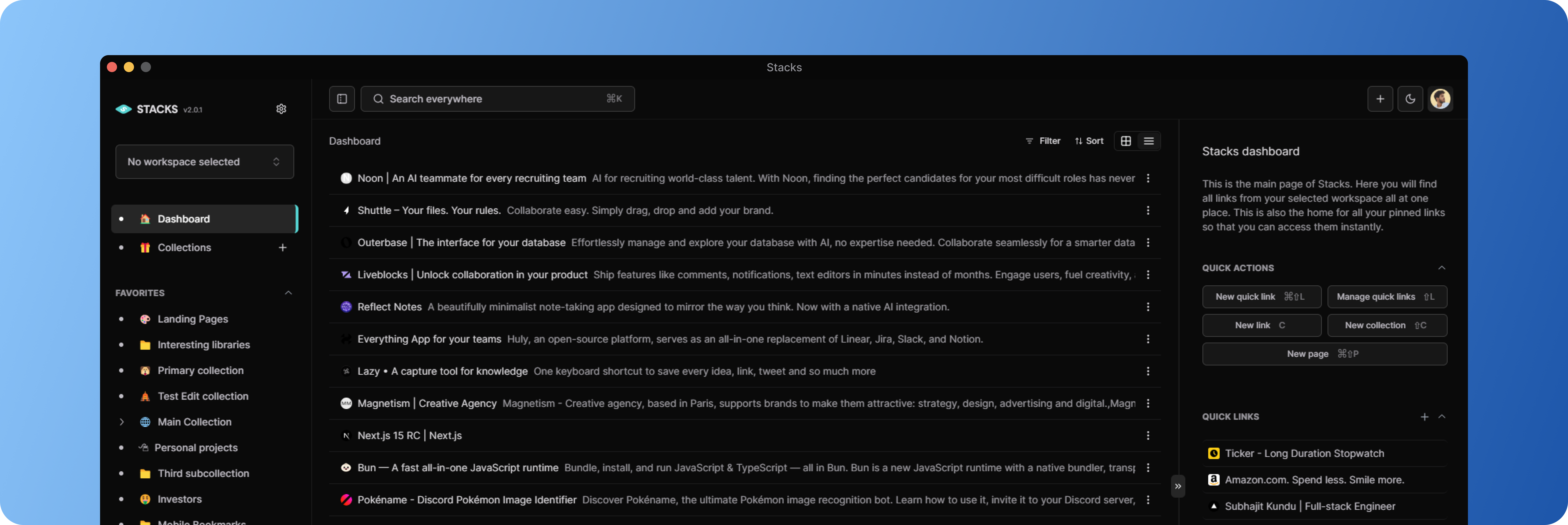
A Stacks workspace is like a container for all saves, collections and notes belonging to an individual or a team. As a
user, you can have accounts on one or many workspaces and can switch between these workspaces using the dropdown menu in
the top left-hand corner of the application. You also choose to have no workspace selected, which means you will see all
contents across all workspaces you have access to.
#### Saves
The most fundamental unit of Stacks is a save. A save is a piece of content that you have saved from the web or uploaded
from your device. Saves can be of various types like links, images, videos, tweets, LinkedIn profiles, and more. Stacks
automatically recognizes the type of content you save and displays it accordingly. You can also add notes and tags to
your saves to organize them better.
A save has three basic properties. It has a title, a URL (or a file if it's an upload), and a description. Both the
title and the description are optional and can be added or modified later. The URL is the most important property and
cannot be changed once the save is created.
Each save belongs to a workspace and every member of that workspace has access to that save. Saves can be further
organized into collections and tags and notes can be added to them.
You can create saves from anywhere in the app. Try it - open any page in the app and press `C`
## Organizing saves
#### Collections
Collections are containers for saves within a workspace. They are like folders on your computer where you can organize
your saves. You can create collections to group saves by topic, project, or any other criteria you like. Collections can
be nested within each other to create a hierarchy of saves. A link can belong to multiple collections at the same time.
A collection has a title and a description. The title is mandatory while the description is optional. You can also add
an emoji to your collection to make it more visually appealing. If you choose not to, it will have a default folder icon
instead.
Just like saves, you can create collections from anywhere in the app. Try it - open any page in the app and press
`Shift` `C`.
You can also mark a collection as favorite. That way the collection would be pinned to your sidebar. To mark a
collection as favorite, right-click on the collection or click on the three dots menu next to a collection name and
select "Mark as favorite".
#### Tags
Tags are labels that you can add to saves to organize them better. You can add multiple tags to a save and a tag can be
added to multiple saves. Tags are a great way to group saves across collections and find them later easily. You can also
filter saves by tags to see only the saves that have a particular tag.
To add a tag to a save, open the save, scroll down to the tags section, and start typing the tag name. If the tag
already exists, it will show up in the dropdown. If not, you can create a new tag by typing the name and pressing
`Enter`.
#### Notes
Notes are text snippets that you can add to saves to remember why you saved them and what you want to do with them.
Notes can be of any length and can contain links, images, and other media. If yuo have a note added to a save, a note
icon will appear in the save card.
To view or add notes to a save, open the save, scroll down to the notes section, and start typing your note.
## Taking actions
Whenever you do something in Stacks that changes a save, collection or any other piece of data, you're taking an action.
#### How it works
We've designed Stacks so that you can take actions in multiple ways: using buttons, keyboard shortcuts, contextual
menus, or by searching for the action in the command palette. This makes it easy to figure out how to do anything in the
app and build muscle memory since you're always following the same patterns.
For example, let's say you want to create a new collection. You can follow any of these methods to do it:
* Go to the `/collections` page and click on the "New collection" button.
* Click on the plus `+` icon next to the `Collections` option in the sidebar.
* Open any page in the app and press `Shift` `C`.
* Open the command palette by pressing `⌘` `K` and search for `Create collection`.
#### Bulk actions
You can also take actions on multiple saves or collections at once. For example, you can move multiple saves to a new
collection, add a tag to multiple saves, or delete multiple saves. To do this, select the saves or collections you want
to take action on and then choose the action from the toolbar that appears at the bottom of the page.
#### Keyboard shortcuts
Your keyboard is the fastest method for using Stacks. Even if you don't use keyboard shortcuts normally, we recommend
learning ones for common actions such as creating a save or collection. These are the most helpful to learn:
* `C` - Create a save
* `Shift` `C` - Create a collection
* `⌘` `K` - Open the command palette
#### Command palette
The command palette is a quick way to search for anything in Stacks. You can open the command palette by pressing
`⌘` `K`. You can search for quick actions, saves, collections, change settings, switch workspaces, and more. It's like
having a full-on command line interface for Stacks.
Launch the command palette by pressing `⌘` `K` on macOS or `Ctrl` `K` on Windows and Linux. Start typing to search for
an action and press `Enter` to execute it.
#### Mouse
Of course, you can navigate and take actions with your mouse. We have buttons, more menus, and dropdowns throughout the
app. Right-clicking on saves or collections in list or grid view as well as in the sidebar will bring up contextual
menus.